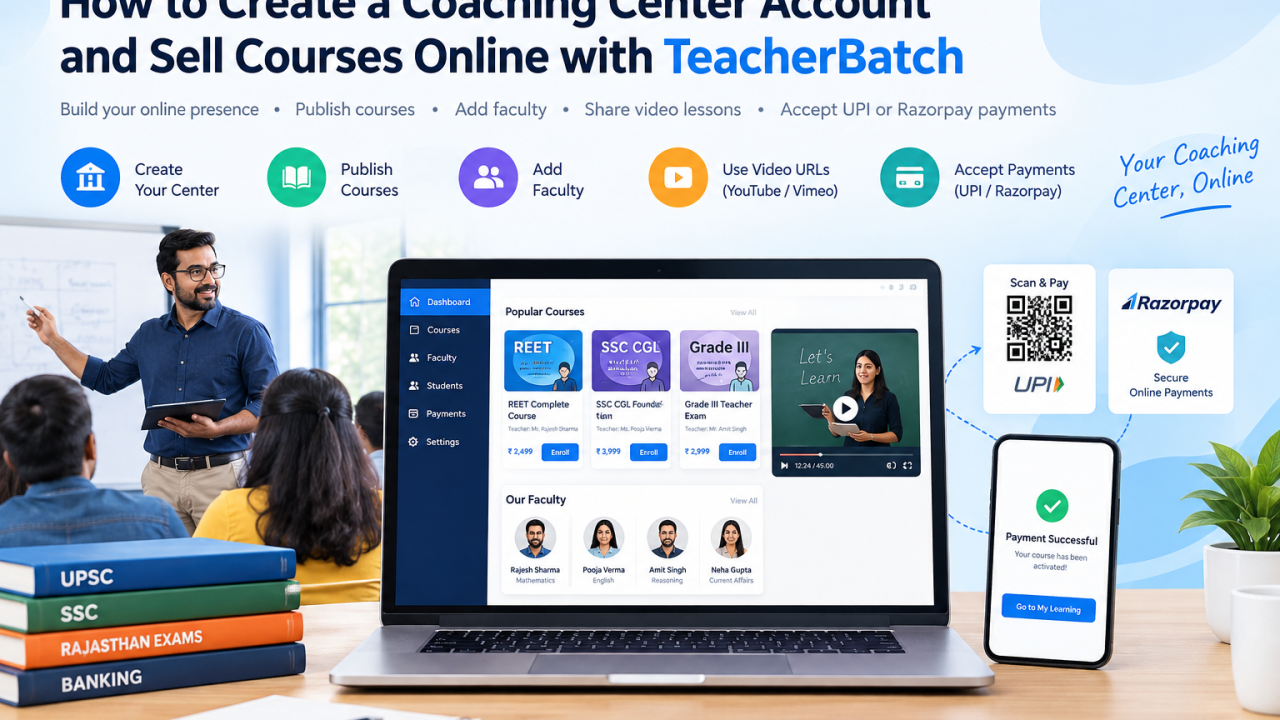
How to Create a Coaching Center Account and Sell Courses Online with TeacherBatch
By Platform Admin · September 23, 2026
How to Create a Coaching Center Account and Sell Courses Online with TeacherBatch
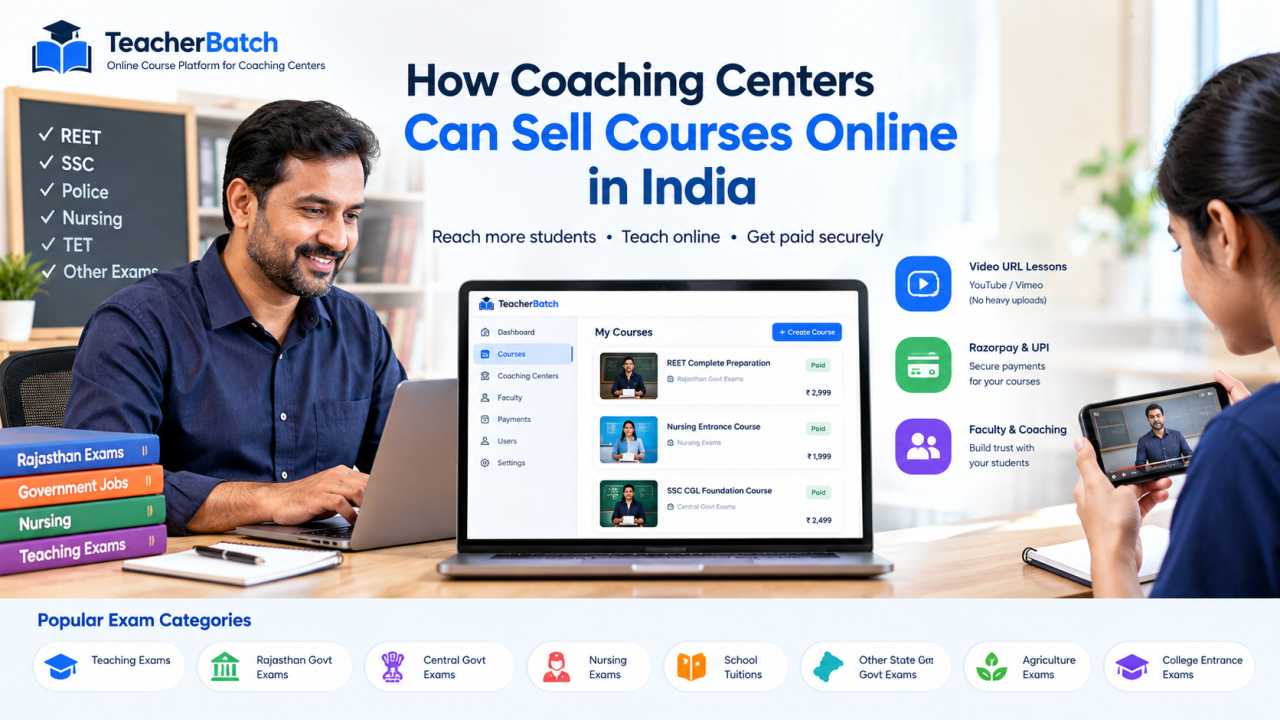
Running a coaching center today means more than teaching students in a classroom. Students increasingly expect online courses, recorded video lessons, digital notes, and convenient payment options. TeacherBatch gives coaching centers a simple way to publish courses, add faculty, share video lessons, and accept payments online.
With TeacherBatch, coaching centers can create a public institute profile, publish courses, add teachers, connect video lessons from YouTube or Vimeo, and allow students to purchase courses using Razorpay or UPI payments.
1. Create Your Coaching Center Account
Start by registering as a coach on TeacherBatch using Google or email OTP.
After registration, open your Coach Panel and complete your coaching center profile. You can add:
-
Coaching center name
-
City
-
Phone number
-
Address
-
Logo
-
Short description
Your coaching center profile becomes publicly visible to students, making it easier for students to discover your institute and courses.
Create your coaching center account
2. Create and Publish Online Courses
Once your coaching profile is ready, create courses for your batches, subjects, or exam preparation programs.
For each course, you can add:
-
Course title
-
Course price
-
Free or paid status
-
Thumbnail
-
Exam category
-
Course description
-
PDF notes
-
Video lessons
You can attach up to 3 PDF notes per course, with each PDF supporting up to 10 MB.
You can also select an existing exam category such as REET, SSC CGL, or another competitive examination. If the exam you need is not available, you can enter a new exam name while creating the course.
Keep your course as a Draft while preparing lessons and publish it when everything is ready.
Students can discover courses through the TeacherBatch course marketplace.
3. Add Faculty Members
Create faculty profiles for the teachers working at your coaching center.
You can add information such as:
-
Teacher name
-
Profile photo
-
Designation
Each video lesson can then be assigned to a faculty member from your coaching center.
This helps students understand which teacher is responsible for each lesson.
4. Add Video Lessons Using YouTube or Vimeo
TeacherBatch allows coaching centers to teach students through video URLs.
You do not need to upload every video directly to TeacherBatch. You can host your lessons on YouTube or Vimeo and add the video URL to your course.
How to add a YouTube video
-
Upload your course video to YouTube.
-
Set the video visibility to Unlisted.
-
Copy the YouTube video URL.
-
Open your course in TeacherBatch.
-
Add a new video lesson.
-
Paste the video URL.
-
Select the appropriate faculty member.
An unlisted YouTube video does not normally appear in YouTube search results, but students with access to the video can watch it.
TeacherBatch also supports Vimeo and HTTPS video file URLs such as MP4 and WebM.
For information about YouTube video visibility, you can also refer to YouTube Help.
5. Accept Course Payments
TeacherBatch provides two main payment methods for coaching centers:
Razorpay automatic payments
Coaching centers can connect their Razorpay account to accept online payments automatically.
The basic process is:
-
Create a Razorpay business account.
-
Open Razorpay API Keys.
-
Copy your Key ID and Key Secret.
-
Add the credentials in your TeacherBatch settings.
-
Students can pay for your courses online.
-
After successful payment, course access is provided automatically.
Manual UPI and QR payments
You can also accept payments through UPI without using an automatic payment checkout.
Upload your UPI QR code from services such as PhonePe, Paytm, Google Pay, or another UPI application and add your UPI ID.
The student can then:
-
Open the course.
-
Scan your UPI QR code.
-
Complete the payment.
-
Enter the UTR number.
-
Submit the payment request.
You can check the UTR number in your UPI application. If the payment matches, approve the order from Students & Payments.
After approval, the student receives access to the course.
6. Manage Students and Course Access
TeacherBatch provides tools to help coaching centers manage enrolled students.
From your Coach Panel, you can review students and payments and manage course access.
You can also block a student when necessary. A blocked student cannot watch videos or access the relevant courses until access is restored.
TeacherBatch also provides a Watch Time section where coaches can see how much time students spend watching course videos. You can view watch-time information for today, the current week, the current month, or a custom date range.
7. Share Your Courses With Students
Students can create their TeacherBatch account using Google or email OTP.
There is no center code required. Students can browse courses from different coaching centers and purchase the courses they want.
You can promote your courses by sharing:
-
Your public coaching center page
-
Individual course links
-
TeacherBatch faculty profiles
-
Course links on WhatsApp
-
Course links with students in your classroom
After enrollment, students can access their purchased courses from My Learning.
Start Selling Your Coaching Courses Online
TeacherBatch provides coaching centers with tools to create an online presence, publish courses, add faculty, provide recorded video lessons, and accept payments.
Whether you are preparing students for REET, SSC, government examinations, entrance examinations, school subjects, or other courses, you can create your coaching profile and start publishing your courses.
Create your coaching center on TeacherBatch and start building your online course catalog.
Keep learning
TeacherBatch helps coaching centers sell courses online with Razorpay and UPI.
Browse courses How it works More articles